

Ergonomic workspace design mistakes that still cause daily strain
Even well-equipped offices can hide costly flaws in Ergonomic workspace design that lead to daily strain, fatigue, and reduced focus for operators and regular users. From improper monitor height to poorly placed tools and unsupported seating, small setup mistakes often create long-term discomfort. Understanding these overlooked issues is the first step toward building a healthier, more productive workspace that supports both performance and well-being.
For operators, administrative users, and workstation planners across industries, these issues are not minor comfort complaints. They affect typing accuracy, visual endurance, task speed, and even attendance stability over time. In B2B environments where output depends on repeatable daily performance, poor Ergonomic workspace design can quietly raise hidden costs through slower work cycles, frequent posture changes, and preventable physical strain.
This article examines the design mistakes that still appear in modern workstations, why they persist, how to identify them, and what businesses should evaluate when upgrading desks, seating, monitor setups, and operator reach zones. The focus is practical: reducing daily strain while improving usability, consistency, and long-term workstation value.
Why daily strain still happens in modern workstations
Many organizations assume that buying an adjustable chair or installing a larger desk solves most ergonomic issues. In reality, Ergonomic workspace design depends on how 4 core elements work together: seating, screen position, input device placement, and task frequency. If just 1 of these is misaligned, the operator may compensate with repeated neck flexion, shoulder lift, wrist extension, or trunk rotation for 6–8 hours a day.
A common problem is that workstations are selected by furniture dimensions rather than user tasks. A workstation for data entry, for example, has different reach and visual demands than one used for order processing, CAD review, customer support, or dual-monitor logistics tracking. When workspace planning ignores task duration, hand movement range, and viewing distance, discomfort appears even in offices with new equipment.
The most overlooked operational mismatch
The biggest mismatch is often between static equipment and variable users. In shared offices, 2 or 3 employees may use the same station across shifts without readjusting seat height, lumbar support, armrest position, or monitor angle. Even a 3–5 cm error in keyboard height or a 10–15 degree head tilt repeated throughout the day can increase muscular load and visual fatigue.
Signs that strain is design-related rather than individual
- Operators report neck stiffness within the first 60–90 minutes of work.
- Users lean forward to read screens despite normal vision correction.
- Wrists rest on hard desk edges during keyboard or mouse use.
- Frequently used tools require repeated reaching beyond the primary 30–40 cm zone.
- Users shift posture every few minutes because back support is not engaging properly.
These symptoms usually indicate a workstation design gap, not a motivation problem. In industrial administration, export coordination, customer communication, and control-room style office tasks, such patterns can reduce concentration and increase error rates over a 5-day or 6-day work cycle.
The most common Ergonomic workspace design mistakes
The following mistakes appear in offices, trade operations centers, procurement departments, and mixed-use industrial workspaces. They often seem small in isolation, but together they create cumulative strain. Reviewing them systematically is one of the fastest ways to improve Ergonomic workspace design without a full facility rebuild.
1. Monitor height and distance are set by furniture, not by eye level
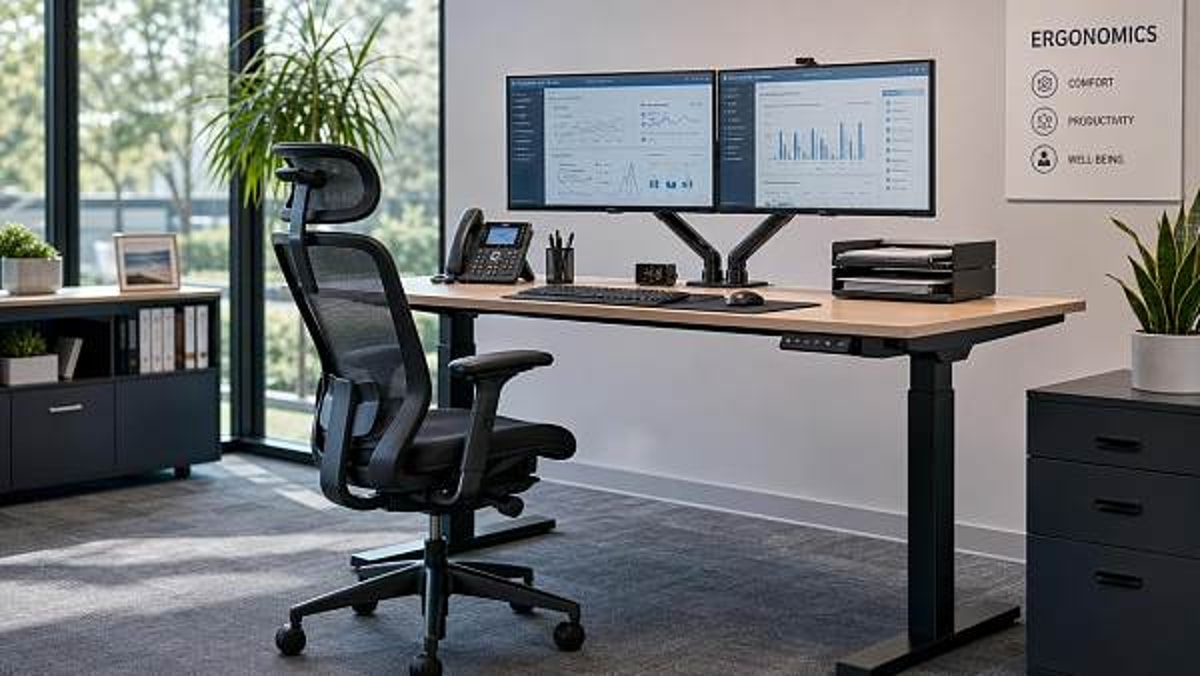
A monitor positioned too low encourages neck flexion, while a monitor set too high can create upward chin lift and shoulder tension. In most office tasks, the top portion of the screen should sit at or slightly below eye level, with a viewing distance often in the 50–75 cm range depending on screen size and text scale. Dual-monitor users should also avoid turning the neck repeatedly toward a secondary screen used more than 40% of the day.
2. Keyboard and mouse placement force wrist extension
If the keyboard sits too high or too far from the user, the forearms lose support and the wrists bend upward. This is especially common when operators use thick desktop surfaces, fixed-height desks, or keyboard trays that are too narrow. Mouse placement is another problem: if the mouse sits 10–20 cm away from the keyboard edge, users abduct the shoulder for hours instead of keeping the elbow close to the body.
3. Chairs are adjustable, but not adjusted correctly
An advanced chair does not improve posture unless seat depth, height, tilt, lumbar contact, and armrest position are set to the individual. Operators often raise chairs to match desk height, leaving feet unsupported. Others sit on the front edge because the seat pan is too long by 5–8 cm. This reduces back contact and shifts load to the thighs and lower back.
The table below highlights frequent workstation errors, their effect on the body, and practical corrections that can usually be made during a 15–30 minute review.
The key takeaway is that strain usually comes from interaction effects, not one isolated flaw. A monitor issue combined with poor chair setup and extended keyboard reach can create discomfort faster than any single factor alone. That is why effective Ergonomic workspace design should always be reviewed as a complete operating system.
4. Frequently used tools sit outside the primary reach zone
In many B2B office settings, users handle headsets, barcode devices, phones, document trays, stamps, notepads, and authentication tools dozens of times per shift. If these items are placed beyond the primary reach zone, operators repeatedly rotate or overextend the shoulder. Items used more than once every 5 minutes should ideally sit within the closest 30–40 cm area in front of or beside the dominant hand.
5. Lighting and glare are treated as separate from ergonomics
Visual ergonomics is often neglected in workspace planning. Overhead glare, side-window reflections, and strong contrast between screen brightness and ambient light can drive users into awkward head angles just to read content clearly. In trade and operations environments where users review spreadsheets, shipping instructions, or multilingual documents for several hours, visual strain directly affects posture and focus.
How to assess an existing workstation in a practical way
A full ergonomic program does not need to start with expensive software or complex measurement systems. Many improvements begin with a structured 5-step review that combines user feedback with simple observation. For cross-functional offices and industrial support departments, this method is scalable and easy to repeat during onboarding, workstation relocation, or procurement updates.
A 5-step review process
- Observe the operator for 10–15 minutes during normal work.
- Check monitor height, screen distance, and head position.
- Review elbow angle, wrist posture, and mouse reach.
- Confirm foot support, seat depth, and lumbar contact.
- Map tools by frequency of use: hourly, daily, or occasional.
This process helps separate subjective discomfort from measurable design issues. It also supports purchasing teams by showing whether the problem requires a new chair, an adjustable monitor arm, a footrest, a desk change, or simply better workstation setup training.
What to record during evaluation
Use a simple review sheet with at least 6 checkpoints: screen height, viewing distance, keyboard level, mouse distance, foot support, and tool access pattern. Add a 1–3 rating scale for discomfort by body area, such as neck, shoulder, wrist, lower back, and eyes. After 2–4 weeks, compare whether adjustments reduce repeated complaints or posture corrections.
The comparison table below can help teams decide which workstation upgrades deliver the best value based on strain severity, implementation effort, and fit for multi-user environments.
For many companies, the best results come from combining low-cost fixes with targeted equipment replacement. A monitor arm and foot support may solve 2 major issues immediately, while chair replacement can be prioritized for users who remain seated for more than 5–6 hours each shift.
Procurement and design priorities for better long-term results
When businesses source furniture or redesign workstation areas, ergonomic decisions should be tied to task type, adjustment range, maintenance simplicity, and user turnover. Procurement teams often compare cost per unit but overlook lifecycle usability. A cheaper item can become expensive if it causes repeated complaints, poor fit across user heights, or frequent replacement within 12–24 months.
Four priorities when selecting workstation components
- Adjustment range: Can the component fit short, average, and tall users without improvised fixes?
- Task compatibility: Is the station built for typing, screen review, calls, paperwork, or mixed activity?
- Durability under daily use: Will moving parts hold position after repeated adjustment across shifts?
- Ease of instruction: Can users understand setup within 5–10 minutes without specialist support?
These priorities matter across sectors because office-based operators increasingly support complex supply chain functions, from order confirmation and documentation review to vendor communication and multi-system tracking. In these contexts, Ergonomic workspace design is not only a comfort matter. It shapes consistency, attention span, and workflow stability.
Common buying mistakes in B2B environments
One common mistake is standardizing every workstation with the same desk height and the same chair model regardless of user role. Another is selecting accessories separately, which creates mismatched dimensions between desktop depth, monitor placement, and keyboard position. A third is skipping user instruction after installation. Even a well-specified setup loses value if the operator never adjusts it after delivery day.
A practical rollout model
A practical rollout usually works in 3 phases: assess current strain points, upgrade the highest-impact components, and train users on setup and posture habits. For medium-size teams, each phase can be completed in 1–3 weeks depending on procurement lead time. This staged approach helps buyers control budget while proving improvement before a larger site-wide rollout.
Maintenance, training, and daily habits that protect the investment
Good Ergonomic workspace design is not a one-time purchase decision. It requires minor maintenance, periodic checks, and user habits that preserve the intended setup. Armrests loosen, monitor positions drift, wheels wear unevenly, and shared stations get reset for one user but not the next. Without review, a workstation can move from well-adjusted to strain-inducing within a few months.
Simple controls that improve consistency
Create a workstation check routine every 30–90 days. Confirm chair height, lumbar support position, monitor alignment, and equipment stability. In shared environments, post a short 4-point setup guide near the station. This reduces setup variation between users and lowers the chance that one poor adjustment remains in place for an entire shift rotation.
Micro-breaks and movement still matter
Even the best workstation cannot remove all strain if the body stays static for too long. Encourage brief movement every 30–60 minutes, especially for heavy screen users. A 1–2 minute posture reset, screen break, or standing change can help reduce cumulative stiffness. This is especially useful in documentation, data processing, and communication roles where users remain seated for most of the day.
Frequently asked operator questions
Many users ask whether pain means the furniture is poor quality. Not always. In many cases, the issue is poor fit rather than poor product quality. Others ask whether standing desks solve everything. They do not. If screen height, reach distance, and task flow remain wrong, strain can continue in a standing position as well. Effective Ergonomic workspace design depends on alignment, adjustability, and correct use.
Daily strain rarely comes from dramatic failures. It usually comes from routine setup errors repeated over hundreds of hours: a monitor a few centimeters too low, a mouse slightly too far away, a seat pan too deep, or tools placed just outside easy reach. Correcting these details improves comfort, endurance, and focus for operators and regular users across office and industrial support settings.
For businesses aiming to improve workstation performance, a structured review of Ergonomic workspace design can reveal which adjustments deliver the fastest operational gains and where new equipment is justified. GTIIN and TradeVantage continue to track practical workplace trends, sourcing considerations, and industrial usability insights that help organizations make smarter facility and procurement decisions. To explore tailored workstation improvement ideas, get a customized solution, consult product details, or learn more solutions that fit your operational environment.
Recommended News
 China’s First Embodied AI Robot Export Liability Insurance Launched in GuangxiEmbodied AI Robot Export Liability Insurance launched in Guangxi—China’s first insurer-backed solution for EU/Japan-bound industrial & service robots. Boost compliance, trust & tenders now.
 Morocco: 4th Top African Recipient of EU Energy Aid, Boosting China’s PV & Storage ExportsMorocco’s EU energy aid boost unlocks opportunities for Chinese PV mounting structures & containerized energy storage exports—act now to leverage new regulatory advantages.
 Industrial Robot Controller Thermal Gel: China's Export-Ready Heat Dissipation SolutionIndustrial Robot Controller Thermal Gel: China’s export-ready, TÜV-certified heat dissipation solution (8.5 W/mK) for robotics in SEA & Mexico.
 ADB Raises Vietnam’s 2026 GDP Forecast to 7.2% on Sino-Vietnam Supply Chain IntegrationADB raises Vietnam’s 2026 GDP forecast to 7.2% amid deepening Sino-Vietnam supply chain integration in electronics, solar PV, and lithium battery PACK production — key insight for OEMs, exporters & integrators.
 First National SME Service Demonstration Platforms AnnouncedFirst National SME Service Demonstration Platforms announced—16 specialize in REACH, UKCA, UL certification & rapid factory audits for exporters.
 U.S. Natural Gas Inventory Growth Below Forecast: Impact on Plastic Export CostsU.S. natural gas inventory growth missed forecast—impacting plastic export costs globally. Learn how rising TTF prices affect PP/PE resin costs, margins & supply chain strategy for exporters.
 EN 62368-1:2026 Enforced in EU: Thermal Runaway Protection for Wearables & Smart Home DevicesEN 62368-1:2026 is now mandatory in the EU—learn how thermal runaway protection impacts wearables, smart home devices & EV accessories.
 Q1 2026 Industrial Profits Up 15.5%: Supply Chain Cost Stability ConfirmedQ1 2026 Industrial Profits Up 15.5% — supply chain cost stability confirmed for global procurement, contract manufacturing & OEM teams.
") MIIT Releases Service Trade Standardization Plan (2026–2030)MIIT's 2026–2030 Service Trade Standardization Plan boosts AI-driven digital services—remote QA, cloud maintenance, intelligent warehouse SaaS—for global export competitiveness.
MIIT Releases Service Trade Standardization Plan (2026–2030)MIIT's 2026–2030 Service Trade Standardization Plan boosts AI-driven digital services—remote QA, cloud maintenance, intelligent warehouse SaaS—for global export competitiveness. WeChat Pay Integrates QR Codes from 5 Countries for B2B Cross-Border SettlementWeChat Pay integrates QR codes from South Korea, Sri Lanka, Thailand, Malaysia & Singapore — enabling faster, cheaper B2B cross-border settlement for global buyers and Chinese suppliers.
 Portable oxygen concentrators get noisy over time for several reasonsPortable oxygen concentrators get noisy over time due to dust, wear, loose parts, and aging compressors. Learn key causes, inspection priorities, and service tips to prevent failures.
 Interactive whiteboards: what schools regret not checking earlyInteractive whiteboards can boost learning, but schools often regret missing key checks on compatibility, durability, training, and support. Discover how to buy smarter.
 Medical diagnostic equipment downtime usually starts with this oversightMedical diagnostic equipment downtime often starts with one overlooked maintenance gap. Learn the warning signs, hidden costs, and smart service strategies to improve uptime.
 Eco-friendly building materials: where certification changes the decisionEco-friendly building materials now win or lose on certification. Learn how verified standards reduce sourcing risk, support compliance, and improve procurement decisions.
 Ergonomic workspace design mistakes that still cause daily strainErgonomic workspace design mistakes can silently cause daily strain, fatigue, and lower productivity. Discover practical fixes to improve comfort, focus, and workstation performance.
 Outdoor garden supplies that wear out too fast in summer heatOutdoor garden supplies can fail fast in extreme summer heat. Discover which items wear out first, what materials last longer, and how to buy smarter for durable, cost-saving performance.
 Sustainable home decor: how to spot green claims with substanceSustainable home decor explained: learn how to spot credible green claims, avoid greenwashing, compare materials and certifications, and choose stylish, healthier pieces with real impact.
 Modern office furniture trends that improve layout flexibilityModern office furniture trends are transforming flexible workplace design. Explore modular, mobile, ergonomic, and acoustic solutions that boost productivity and smarter space planning.
 Smart street lighting works best when control systems are not overlookedSmart street lighting succeeds when control systems come first. Learn how better monitoring, dimming, and integration improve ROI, maintenance efficiency, and long-term project performance.
 What solid-state battery breakthroughs are still years from market?Solid-state battery breakthroughs sound transformative, but which ones are still years from market? Explore the technical, cost, and scaling barriers shaping real adoption timelines.
 Commercial LED lighting retrofits: when is payback slower than planned?Commercial LED lighting payback can slip when costs, runtime, rebates, and controls are misjudged. Learn the hidden risks and review steps that protect ROI before approval.












Popular Tags
Global Trade Insights & Industry
Our mission is to empower global exporters and importers with data-driven insights that foster strategic growth.
Search News
Popular Tags
Industry Overview
The global commercial kitchen equipment market is projected to reach $112 billion by 2027. Driven by urbanization, the rise of e-commerce food delivery, and strict hygiene regulations.